SIMUT — User Manual
Firmware: v2.11.1 · Hardware: Raspberry Pi Pico W (RP2040 + CYW43439) · License: MIT Repository: https://github.com/angeloINTJ/simut
This is not a certified metrological instrument. It is tested on real hardware: the line left beta on an 8.2 h soak and six OTA round trips (v2.7.0), and every release goes through an update on the bench before it is published. Still, do not make it the only control on regulated storage without validating it against your own reference.
Everything below was checked against a running device. Where a number is quoted it was measured rather than estimated; where behaviour is untested or known to be incomplete, the text says so rather than going quiet.
Three builds share this manual. Most of it describes the release build — the one with the touch display. Two variants differ, and each is marked where it does: the alpha build drives a 16×2 character LCD instead, and SIMUT Air has no display at all and spends most of its life asleep on a battery. §17 is about Air specifically; the alpha’s differences are noted inline.
Contents
- What SIMUT is
- Hardware
- First boot
- Sensors and the slot model
- The device display
- The web interface
- Alarms
- History and logs
- Users and permissions
- Telemetry
- Backup and restore
- Firmware updates
- The serial console
- Recovery
- Specifications
- HTTP API reference
- SIMUT Air — the battery build
1. What SIMUT is
A datalogger for temperature, humidity and pressure that runs entirely on one Raspberry Pi Pico W. It reads up to sixteen sensors, draws them on a touch display, serves its own web interface on your LAN, keeps an audit trail, and can update its own firmware over the air.
There is no cloud component and no account. Telemetry to an external endpoint exists but is off by default, and the device is fully usable having never been given one.
What it is not. It is not certified for regulated storage, it has no redundant sensing, and it holds no second firmware slot to fall back on. The sections below are explicit about each of those limits where they matter.
The three builds
The same source tree produces three images. They share the sensor model, the history format, the web interface and the permissions; what differs is what is attached and how much of the time the device is awake.
| Build | Display | Awake | For |
|---|---|---|---|
release (pico_w_release) |
320×240 touch TFT | always | mains-powered installations with someone in front of the device |
alpha (pico_w_alpha) |
16×2 character LCD | always | the same, on cheaper hardware; adds a Bluetooth console and an on-device AP mode |
Air (pico_w_air) |
none | ~13% of the time | battery installations that report and go back to sleep — see §17 |
The alpha build cycles its sensor slots on the two lines of the LCD, shows boot
progress as a bar, and carries a Bluetooth serial console because it has no
touch panel to enter AP mode from. The top-left corner is W and a signal icon
whose bars fill left to right; with a single sensor, the bottom-left corner
shows the telemetry records waiting to be sent, the way the TFT’s top bar does
— the number up to 999, whole thousands with a k after that, and nothing when
the queue is empty. With more than one sensor that corner names the slot on
screen instead (S0, S3…). Its Bluetooth is discoverable for five
minutes after boot and no longer, so an unattended unit stops advertising
itself; a phone that is already paired keeps connecting, and rebooting reopens
the window to pair a new one.
Design in one paragraph
Two cores with a strict division. Core 0 runs sensors, Wi-Fi, the web server, telemetry, history and the serial console. Core 1 does nothing but drive the display, reading lock-free snapshots of shared state. That split is why a busy network does not stutter the screen — and it is also the source of the trickiest class of bug in the project, since a flash write must stop Core 1 before erasing anything it might be executing from.
2. Hardware
| Part | Specification |
|---|---|
| Microcontroller | Raspberry Pi Pico W — RP2040, dual Cortex-M0+, 264 KB SRAM, 2 MB flash |
| Wireless | CYW43439 (2.4 GHz Wi-Fi) — the radio blob occupies ~232 KB of the application slot |
| Display | ILI9341 320×240 TFT over SPI |
| Touch | XPT2046 resistive panel |
| Sensors | 16 slots on GPIO0–GPIO15 |
| Buzzer | Passive piezo, driven from PIO |
| Storage | On-chip flash: 1020 KB application, 1 MB filesystem, 4 KB metadata |
GPIO allocation. GPIO0–GPIO15 are available to sensors. GPIO16 and above belong to the display, touch panel and buzzer, and the pin picker in the web interface will not offer them.
Full pinout and assembly notes: WIRING.md.
3. First boot
-
Flash the firmware. Hold BOOTSEL while connecting the Pico over USB, then copy
simut_v2.3.2-beta.uf2onto theRPI-RP2drive that appears. The board reboots into SIMUT by itself. -
Read the admin password. On the first boot with no stored configuration, a random 8-character admin password is generated and printed once over USB serial at 115200 baud. Write it down — it is stored only as a salted hash, and nothing recovers it later except a reset.
-
Join a network. The setup access point opens when you ask for it:
apon the console (USB, or Bluetooth on the alpha and the Air), or Settings → 8 on the panel. It is<name>_SETUP, WPA2, with the key in theapreply, on the USB console and on the display (§14), and the portal athttp://192.168.4.1takes the network’s name and password. No image opens it by itself; v2.7.1 to v2.8.0 did, on a unit with no network configured. Over USB,system ssidandsystem passdo the same job. The release image answers to mDNS, so it is reachable athttp://simut.localas well as by IP.show net statusover serial prints the address if you need it.A unit with no network configured asks for the date and time at the end of the boot instead, because without a network there is no NTP and the clock is the provisional one: the panel opens a date and time screen — set it and SAVE, or SKIP; 30 s untouched does the same as SKIP — and every image prints
No network, provisional clock: conf time YYYY-MM-DD HH:MM:SSon the console. That command works on every image’s console, over USB or Bluetooth; on the alpha and the Air, which have no panel, it is how the question is answered. The web page’s Date & Time section works too.mDNS is on by default and costs 15,272 B of flash — measured, by linking the image both ways. Set
SIMUT_MDNS=0insrc/simut_config.hto drop it and reach the device by IP only. -
Change the password. The first web login is forced through a password change before any page will load.
-
Add sensors. In the web interface under System Config → Sensors & GPIO, either add slots manually or use Scan for probes to discover 1-Wire devices on a pin.
A factory device provisions no sensors at all. All sixteen slots come up empty and claim no GPIO. This changed in v1.6.0-beta: earlier firmware pre-activated slot 10 as a DHT22 on GP10, which made that pin unassignable on a board that had no sensor there, and a factory reset put it back.
4. Sensors and the slot model
One model, sixteen interchangeable slots
A slot is a position, not a role. Any slot takes any supported sensor, in any combination, and none of them is special. What identifies a sensor is its own hardware ID — so calibration offsets, alarm thresholds and history records follow the physical device you wired, not the position you wired it into.
| Type | Bus | Channels | Pins per slot |
|---|---|---|---|
| DS18B20 | 1-Wire | temperature | 1 |
| DHT22 | single-wire | temperature, humidity | 1 |
| BME280 | I²C | temperature, humidity, pressure | 2 (SDA, SCL) |
| BMP280 | I²C | temperature, pressure | 2 (SDA, SCL) |
The BMP280 became a type of its own in v1.6.0-beta. Before that it shared
TYPE_BME280, which declares a humidity channel the part does not have — so
whichever chip you owned, the firmware was wrong about one of the two.
Calibration
Each sensor carries one correction curve per quantity it measures, defined by up to 5 calibration points. A point pairs the raw reading with the value a trusted instrument showed at the same moment. The correction is interpolated between points and held flat beyond the first and last — the device never extrapolates a slope outside the span you actually measured. One point is the classic constant offset; zero points means no correction (the sensor’s own output stands), and the editor says so explicitly.
With 3+ points you can choose the interpolation per quantity: Straight (piecewise linear, the default) or Smooth (a monotone cubic — Fritsch– Carlson/PCHIP — on the offsets). Smooth bends through the anchors without ever overshooting them: in every interval the correction stays inside the range the two surrounding points define, and its slope flattens to zero at the first and last anchors so it meets the held zones without a kink. Splines that overshoot (Catmull-Rom, natural cubic) were rejected on principle — an overshoot is a correction larger than anything the reference instrument ever showed.
The editor lives in the /config slot dialog, one block per quantity: the raw
and corrected readings side by side, the point rows, a capture button that
fills the raw field with the current reading, and Remove correction to
return to the sensor default. A point whose raw field is left empty is
captured from the live reading at the moment you save — that is the one-click
equivalent of the old single-reference flow. Points must have distinct raw
values (at two decimals) and both coordinates must sit inside the quantity’s
plausible range; the panel warns as you type, with the same rules the firmware
enforces.
Everything is stored in /calib.csv, keyed by the 1-Wire ROM for a DS18B20
and by board serial + hardware ID for ROM-less parts. The canonical row is
key,id,name,raw,ref[,raw,ref,…] — everything a row has to say sits after
the name, one number per CSV column, so a spreadsheet opens the file
directly. A smooth curve adds a cub cell right after the name
(key,id,name,cub,raw,ref,…). Two other shapes coexist, told apart by field
count: key,id,name (a DS18B20 identity row with no correction) and the
legacy 4-column key,id,offset,name written by older firmware, which reads as
the constant offset it always was and is carried in that shape until real
points replace it — an offset with no known anchor has no point cells to
become. Older firmware reading a points row sees no correction (never a
wrong one).
Renaming a hardware ID migrates the rows; removing a correction deletes the
row, except for DS18B20 rows, which double as the ROM→ID/name database that
sensor accept reads.
DS18B20 pairing is automatic. A DS18B20 provisioned through the slot
editor is saved with the GPIO only; on the restart that follows Save &
Restart, the firmware reads the probe’s ROM off the wire, adopts it into the
slot and re-keys the sensor’s calib.csv row by that serial number —
migrating any correction saved while the sensor was unpaired. From that boot
on, the ROM is verified periodically and a swapped probe is quarantined
instead of silently impersonating the calibrated one. A probe that is absent
at boot simply pairs on the next restart.
Two identical DHT22s on one board calibrate independently, which was not true before v1.6.0-beta: offsets for ROM-less parts used to be a single device-wide row pair applied to whichever such sensor came first in the runtime list.
Corrections apply to the filtered reading (after the trimmed mean), so the outlier rejection always operates on raw physical values, and every consumer — display, history, alarms, telemetry — sees the corrected value.
Calibration requires the CALIB permission and needs NTP synced.
/calib.csvdoes not survive a firmware update. See §12 for what an update preserves and what it does not.
Reading pipeline
Readings pass through a trimmed-mean sliding window of 10 samples before they reach the display, history or telemetry. The DS18B20 resolution (9–12 bit) and the sampling interval are set under System Config → Hardware & Sampling.
5. The device display
The panel is 320×240 with a resistive touch overlay. The firmware has 21
distinct UI modes. A full visual map — every screen, with the exact route to
reach it — is generated from a real device by
tools/screen_mapper.py and published at
docs/images/screens/screens.md.
The whole interface was visually redesigned in v2.1.5 (widgets, Latin-1 accents, DMA-composited rendering) and hardened in v2.1.10 so that every screen keeps its content inside a 4 px safe area — the screen-alignment offset (±4 px per axis, Settings → Screen alignment) can shift the image without ever cropping anything.
Dashboard
Two sensor cards — an upper panel and a lower panel — above a footer of up to five buttons. Footer buttons select slots, page through them when more than four are active, and open settings (CFG).
- Tap a sensor card to toggle its min/max view — anywhere on the card, on either panel.
- Hold the upper card for three seconds to pin it to the sensor it is showing, or to unpin it. Unpinned, the upper panel follows the slot selected in the footer; pinned, it stays on one sensor while the footer moves the lower panel. Pinning also leaves min/max. (Until v2.4.9-beta a quick tap on the right edge of the upper card did this too — it does not any more.)
- Tap the graph icon in the min/max view to open that sensor’s history.
- Tap CFG to reach settings — this asks for your PIN.
The top bar shows the date and time as dd/mm/yy - hh:mm:ss. While the clock
is the provisional one — no NTP sync and nobody has set it since the boot —
the separator becomes ? and the date and time turn amber:
01/10/26 ? 09:58:12.
The account first, then the PIN
CFG opens the account list: pick yours, and only then type the PIN. Every
account has its own; the factory admin starts with 1234 and must change it on
its first visit (an upgraded device inherits the display PIN it had, when it
was numeric).
Why the account comes first (config v25). Up to v24 the PIN was the identity: the panel walked the whole table looking for the account the sequence belonged to. Two bad things followed. A blind guess counted against every account at once — with the table full and four digits, 20.2% per attempt. And when two accounts matched one sequence, neither got in, because the panel had no way to ask which was meant: 15% of logins, measured on the bench. Choosing the account first means the device verifies one digest: the guess drops to 0.81% and the ambiguity is gone by construction.
A locked account says so in the list, before the PIN — the difference between “you typed it wrong” and “this account is out of tries”.
The lockout ladder is per account, with a panel ceiling above it: the 3rd failure waits 5 s, the 4th 15 s, the 5th 60 s, and the 6th locks that account until the next reboot. Twenty failures across all accounts lock the whole panel, also until reboot. Both are needed: per-panel only (what v24 had) meant six wrong taps from anybody shut the panel for everyone; per-account only would hand an attacker 32 × 6 attempts.
The keypad: dealt or ordered, as the policy says
A fixed pad hands the PIN to whoever is watching — the finger positions are always the same ones. So the panel can deal the alphabet over cards of 2 or 3 glyphs and re-deal after every tap: the whole card is one button, the tap says only “one of these”, and not even the device learns which. Two taps on the same spot are not the same glyphs, so a watcher cannot even tell whether two characters of the PIN are equal.
With digits and 3 glyphs (the default, and what v24 did) there are four cards; the two spare slots take a filler symbol, so that every card shows three glyphs and the width says nothing.
At one glyph per key there is no deal. A set of one hides nothing from
anybody who can read the glass — the character is printed on the key that was
pressed — so shuffling would only cost the operator their muscle memory. In
that mode the keypad is ordered: the usual numeric pad for 0-9, or a
two-tap alphanumeric one (nine groups, 0-9 ABC … WXYZ, the character in a
popup) for 0-9A-Z.
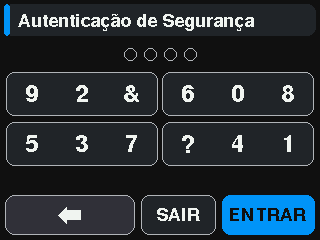
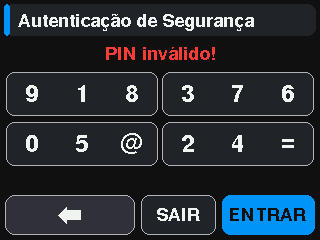
Setting a PIN always uses the ordered keypad, whatever the policy says. Scrambling hides a PIN someone already has from someone watching; choosing one is the opposite problem, and hunting a character through a shuffled deal only costs taps.
The policy, and what each axis buys
user policy <min> <keypad> <alphabet> on the CLI, the PIN policy item on
the panel, or the configuration page on the web.
| axis | effect | price |
|---|---|---|
alphabet 0-9 → 0-9A-Z |
a blind guess costs 168× more at four characters | none: the search does not get dearer |
| keypad 3 → 2 → 1 glyph | fewer candidates per tap ⇒ a dearer guess | a watcher sees more |
| length | every character multiplies | taps, and CPU |
Warning: The keypad is zero-sum: the set that hides the character from a watcher is the set the search has to walk. The alphabet is the one axis that is not a trade.
The length ceiling is CPU, not taste. The tap tree costs S+S²+…+Sⁿ
SHA-256, measured at 36.6 µs each on the rig, and Core 0 is stopped for it —
the web server waits behind. Hence 16/12/8 characters for 1/2/3 glyphs per
key. At 3 glyphs, 10 taps would be 3.2 s and 16 would be 39 minutes.
Tightening the policy marks every account holding a PIN to change it at its next visit. That is unavoidable: the device keeps only the digest and has no way to know whether an old PIN still fits the new rule.
PINs are set by the user (Change Password item), by an administrator in the
panel’s Users item, on the /users web page, or with user pin on the CLI.
Settings
Reached through CFG, after the PIN. The title says who is in — “Settings >
name” — because the panel session lasts until the tree is left and everything
done in it is signed with that name. The menu lists only what the account’s
bits reach: themes, sounds, language, calibration, alignment and the date
and time want SYS_CONFIG; Alarms wants any one of the three panel bits;
Users and the PIN policy want USER_MGR; the setup access point wants
NET_CONFIG; one’s own PIN, the license and the status screen are everyone’s.
An alarm operator sees four items, the admin all thirteen.
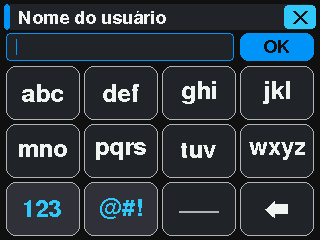
The fingertip keyboard of v2.1.9 — eight large group keys opening a popup with both cases at once, any of 91 characters in two taps — is still how text is typed here, which today means the name of a new account; the PIN has the keypad above.
System status is the screen worth knowing: device name, firmware version, board serial, uptime, free heap, flash usage and board temperature — the fastest way to confirm what a device is actually running.
Themes
The release build compiles one theme, but the device is not limited to it.
Up to eight custom themes live on the filesystem as .thm files in
/themes — plain text, one colour per role (24 roles, covering every element
the display draws: chrome, values, and the alarm/caution/selection state
colours plus the graph’s date stamps), written as #RRGGBB or 0xRRGGBB.
Missing keys fall back to safe stock values, so older 17-colour files stay
valid. Ready-made themes ship in data/themes/ — upload
the ones you want through the /files page.
Write your own with the editor in tools/theme-editor/.
It is a small web app that logs into the device, uploads a preview theme,
applies it and deletes it again — so the panel in front of you repaints as you
pick colours, rather than after an upload-and-reboot cycle.
Forty-nine further themes exist as build packs in src/simut_config.h
(SIMUT_THEMES_HEALTH, _PRO, _MEDICAL, _SAFETY, _RETRO, _NATURE,
_UTILITY). All seven are commented out by default; uncommenting one compiles
its palettes in at roughly 85 bytes each. Every built-in palette passes the
same contrast audit as the curated collection (small text ≥ 4.5:1, values
≥ 3:1 against their real backgrounds).
History
The graph view plots one sensor over a selectable range (1H · 6H · 12H · 24H · 7D), with navigation backwards and forwards in time, a calendar picker and zoom. Since v2.1.8 the plot aggregates into time buckets with a real min/max band around the average line — a one-minute spike cannot be sampled out of the picture — and pressure sensors get a second axis in hPa (v2.1.7). A numeric detail screen gives maximum, minimum, average and standard deviation for the range on screen.
While the web holds the device
When a web client is performing a long operation — streaming history, exporting logs — the top bar shows the user holding it and touch is rejected on the dashboard until it finishes. The banner is deliberate: it tells you why before you touch rather than after.
During a firmware update
An update takes the panel from whatever screen is up and shows each step under
Firmware update: Receiving the new version with a bar and the percentage,
Checking the signature, Image verified, then Installing the new version
until the device restarts — each with Do not switch the device off in
amber. Neither a tap nor the 30 s idle return takes it away. A refused image
shows Update refused, the reason (the same verdicts v=7 to v=12 the web
page names, and Not a valid firmware image for the rest) and Still on the
current version for 12 s; an upload cut short, Update interrupted for 8 s. A
tap leaves either early. After an install, the boot log shows
Update installed: v<version>. The alpha’s LCD prints the same steps in two
lines of Portuguese. See section 12.
6. The web interface
Served from the device itself. Log in at http://simut.local or the device IP.
| Page | What it does |
|---|---|
/ |
Dashboard: system statistics, memory and flash usage, live sensor table, and a display capture panel that reads the physical screen |
/config |
Device identity, date and time, hardware and sampling, the GPIO map and sensor slots, telemetry |
/network |
Wi-Fi (with a scan that lists the networks in range), static addressing, mDNS, NTP |
/alarms |
Per-sensor thresholds and actions |
/users |
Accounts and permissions |
/files |
Filesystem browser: upload, download, delete, create directories, and a viewer that shows a text file organized (JSON indented with blocks that fold, the sections of a language or theme pack, numbered lines) — plus full backup, restore and firmware update (OTA) |
/history |
History graphs, CSV export, and the system event log viewer |
/license |
License text |
Picking the Wi-Fi network instead of typing it
Scan, next to the SSID field on /network, lists what the radio can hear:
name, whether it is secured, and signal. Tapping a row fills the SSID in and
puts the cursor in the password field. The list holds twelve networks, sorted
by signal; a network answering on several radios (a mesh) appears once, as its
strongest, and hidden networks are not listed — there is nothing to tap, and
their SSID still has to be typed.
It works in AP mode, which is the case it was built for: a device that has never been configured serves its setup page over its own access point, and that is the one moment it is guaranteed not to be on the network whose name it is asking for. The sweep needs the station interface, which AP mode leaves down, so the device brings it up beside the access point — the page you are reading stays up. On the bench, two sweeps from inside the setup AP took 0.93 s each and did not drop a single poll; the page still tolerates losing a few, because a radio off channel is a radio that is not serving the page.
The scan’s routine success is not written to the event log: SYS_WIFI_SCAN is
transition-filtered per family, and the reconnect scanner has already fired
that code by the time anyone opens the page. A scan the driver refuses, or
one that never finishes, is a WARN and is always recorded.
If Radio busy comes back, the reconnect logic has the radio — the device is looking for its own network — and the scan is refused rather than queued. Try again in a moment.
Changes stay pending until you say what to do with them
Editing a field changes nothing on the device: the page stages it and a bar at the top says what can be done with it. How many buttons appear is the device’s answer, not the page’s guess.
| button | what it does |
|---|---|
| Save & restart | saves and restarts — always, even when the change did not require it |
| Apply now | saves and applies without restarting |
| Test | applies without saving: a restart undoes it, and the staged set stays so you can still save or discard it |
The last two appear only when the change can be applied live — alarm limits, maintenance, the alarm line, telemetry over HTTP, theme and language, accounts and the PIN policy (since v2.10.0; accounts get only Apply now, because an account cannot be tested). Network, sensor provisioning and timezone still need a restart, and then the bar shows only “Save & restart” and says why.
The page asks the device (a rehearsal that changes nothing) instead of deciding for itself. The rule is to compare the staged configuration against the current one, and only the device can do that: a field typed back to its current value is not a change at all.
Test does not survive a power cut — it is for trying a limit, not for configuring. While the staged set is there, the bar stays visible.
Restart without saving (since v2.7.3, in the Restart section at the bottom of the page) restarts the device and writes nothing: whatever is still staged is dropped, and so is anything applied with Test, because the device comes back with its saved configuration. It asks first; the device is offline for about 10 s.
Authentication
Login is a two-step exchange: the browser fetches a nonce from
/api/login_init, hashes the password client-side, and posts the hash with the
nonce. The session is a SIMUTSESS cookie.
Since v2.7.3 the login page shows the firmware version under the product name, so you can tell what a device runs before signing in.
Two details matter if you are scripting against it:
- The page hashes each UTF-16 code unit as one byte — that is latin-1, not UTF-8. A password containing characters above U+00FF cannot be reproduced by a UTF-8 hash.
- Repeated failures trigger an exponential lockout measured in seconds.
Serving the UI over HTTPS
The web server runs HTTPS when a certificate pair is provisioned, and plain HTTP otherwise. Generate a per-device pair on your workstation (EC P-256 on purpose — its handshake fits this heap where RSA-2048 would not):
openssl req -x509 -newkey ec -pkeyopt ec_paramgen_curve:prime256v1 \
  -keyout web_key.pem -out web_cert.pem -days 3650 -nodes -subj "/CN=simut"
The pair lives at /config/web_cert.pem and /config/web_key.pem, and there
are two ways to put it there.
On a device in service — POST /api/tls. Admin only, the same gate an OTA
apply carries, because a certificate decides who the browser trusts from the
next boot onwards. Send the two PEM blocks concatenated, in either order:
python3 tools/install_tls_cert.py --host 192.168.1.50 \
  --cert web_cert.pem --key web_key.pem --reboot
# or, by hand, once authenticated:
cat web_cert.pem web_key.pem | curl -X POST --data-binary @- \
  -H 'Content-Type: application/x-pem-file' http://192.168.1.50/api/tls
The device refuses the pair unless it parses and the key belongs to the
certificate — it derives the public key from the private one and compares it
with the certificate’s, so a mismatched pair is a 400 now instead of HTTPS
quietly not coming up at the next boot, with the working pair already deleted.
A passphrase-encrypted key is named as such rather than called invalid. The
answer says what the next boot will serve; the running server is not switched
under you, so restart when it suits you.
This is the only route that writes into /config, and it is narrow on purpose:
two fixed paths, no filename taken from the request. The Files page still
refuses /config outright — since the 2026-08-29 audit, because a forged pair
in the credential store is a man-in-the-middle on the admin session after the
next reboot — and the manual pointed at it anyway for a month
(#133).
On a fresh unit — at first flash. Place the two files under data/config/
and upload the filesystem image with pio run -t uploadfs, which reformats the
partition and is therefore only for a unit with nothing to lose. With the web port at its
default 80 the HTTPS listener moves to 443, so https://<device-ip> works; an
explicitly configured port is honoured as-is. The private key is never served
by /download, and system format clears it with the rest of /config.
What to expect:
- The certificate is self-signed, so the browser warns once — inspect and
accept. The session cookie gains the
Secureflag. - Plain HTTP stops answering: there is one server and it now speaks TLS. A handshake costs about 0.5–0.7 s on this chip, and one TLS client is served at a time — a second simultaneous connection is dropped.
- A missing or unparseable pair can never lock you out: the device falls
back to plain HTTP on the configured port. To turn HTTPS off, run
system https off confirmon the USB console (§13) — it deletes the pair and reboots. Overwriting the key through the Files page is refused by the same guard that blocks uploading one. - Firmware updates are still best performed over plain HTTP (§12): staging a ~1 MB image through TLS is slow on this chip and the documented recovery paths assume HTTP.
- Switching HTTPS off, in the same browser: once you have signed in over
HTTPS the session cookie carries the
Secureflag, and browsers refuse to send or overwrite aSecurecookie from a plainhttp://page. So the first sign-in after reverting to HTTP can bounce straight back to the login screen — the login accepted, but no session cookie reached the device. The login page detects this and says so; the fix is to open a private window, or clear this site’s cookies (the session cookie is per-session, so simply closing and reopening the browser also clears it).
Alarms, per sensor and per bit
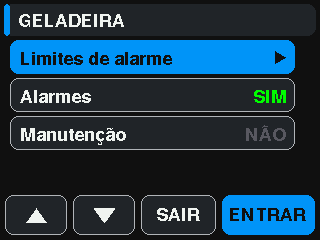
The sensor list opens, for the selected sensor, a three-line menu — each line behind its own bit, and a line the account lacks is drawn dimmed with a padlock:
| Line | Bit | What it does |
|---|---|---|
| Alarm limits | 0x0400 |
the limit editor; SAVE stores and sends alarm_lim with lo/hi |
| Alarms ON/OFF | 0x0800 |
enables/disables the sensor’s alarms; sends alarm_on/alarm_off |
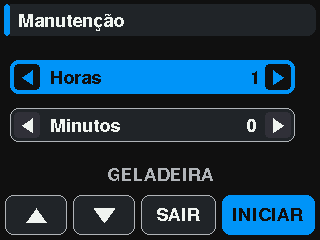
| Maintenance | 0x1000 |
opens a window in hours and minutes (30-day cap); inside it the sensor raises neither limit nor fault and the panel/buzzer stay quiet; shows the time left, END closes early |
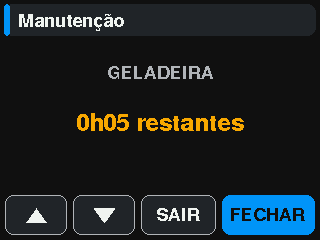
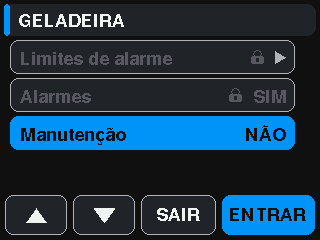
Every action belongs to the identified user: it goes to the event log with
ctx = account×100 + slot and to the second telemetry line with "user"
(§10 and docs/API_POST.md). Deactivate on the alarm pop-up asks for the
PIN and the block bit too. The settings menu itself lists only what the
account’s bits reach: an alarm operator sees four items, the admin ten.
Users
A menu item for accounts holding USER_MGR. It lists the accounts — except
the admin, which has nothing here that can be changed: its bits are all of
them, it cannot be deleted, and its own PIN is the Change Password item of
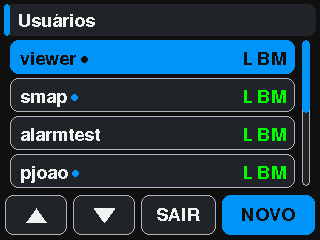
its own menu. The letters L B M say which of the three panel bits an
account has; a dot after the name says it has a PIN. NEW creates an account in three
screens: name (keyboard), the three bits, PIN twice. An account created here is
panel-only — it cannot enter the web until an administrator grants it a page
bit and resets its password. Selecting an account opens the editor: the bits,
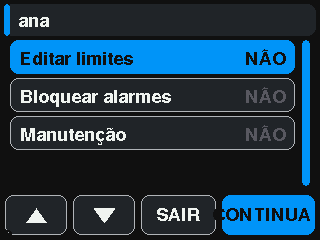
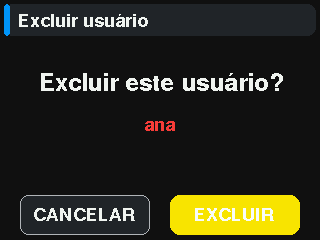
Set PIN and Delete user (with confirmation). A PIN that belongs to
another account is refused on the spot.

Display capture
GET /api/screenshot returns a 320×240 24-bit BMP read back from the panel’s
framebuffer over SPI. It is the real screen rather than a re-rendering, and it
is what the screen map in §5 is built from.
The Live view button next to it uses GET /api/screen_stream: the same
panel, one frame per request, in 8-row strips that are either palette-RLE
(one colour byte, one count byte) or raw, whichever is smaller. An average
frame is 9.5 kB instead of the BMP’s 230 kB, and the mirror runs near one
frame per second because it reads each row once — the BMP capture reads three
times and votes, which is what makes it the forensic reference and what makes
it slow. An occasional wrong pixel is the price of the mirror; to check
colours, use the capture.
With the mirror running, clicking it taps the panel: the page converts the
click into panel coordinates and calls POST /api/touch with x and y. It is
the same injection the console’s touch sim performs, and it faces the same PIN
keypad — reaching Settings asks for the display password exactly as it would for
a finger.
Holding the click — or a finger, on a touch screen — makes it a long press.
The page times the press and draws a ring that turns green at the panel’s 3 s
threshold; on release it sends the duration as ms, and the device holds the
touch that long (100 to 15000 ms) — what the console’s touch hold does. A
press under 250 ms is an ordinary tap. The device replays the press after you
let go, so the screen reacts only then.
Warning: A caller using /api/touch outside the page must wait ~600 ms before
asking for the next frame. A tap becomes an event Core 0 consumes in its loop,
and a capture occupies that same core, so a frame requested immediately
photographs the screen before the transition. The wait cannot live in the device
precisely because the device is what the request blocks.
7. Alarms
Each sensor slot carries its own thresholds and is enabled independently.
Thresholds are set from the web interface under /alarms, or on the device
under Settings → Alarm Limits — select a row, then tap its ON/OFF zone to
open the editor.
An alarm in progress raises the buzzer unless muted, marks the sensor on the dashboard, and writes a record to the audit log.
Global mute lives on the device under Settings → Alarm Sounds and asks for confirmation, because it silences every alarm channel at once.
8. History and logs
History records
Readings are written to /history/YYYYMMDD.h5 in a compact binary format
(V5). The recording interval defaults to one minute and is configurable
from 1 to 1440.
V5 records are keyed by slot × channel, not by hardware ID — renaming an
ID no longer stops the recording (that was a V4 behavior). The place a rename
does bite today is calibration: /calib.csv rows of ROM-less sensors are
keyed by hardware ID, so rename through the slot editor (which migrates the
rows) rather than by editing files. A slot added or renamed today still needs
/api/history_rebind (the button in the slot editor) to gain its column in
the day file that froze its schema at midnight.
Export is available as CSV from /history: since v2.1.8 the page downloads
the raw .h5 day files (plus the open hour via /api/history/open) and both
the graph decimation and the CSV decoding happen in the browser — the device
only serves bytes. The .simx bundle endpoint /api/export/history.bin
remains reachable by URL for scripts, but it is no longer the CSV button’s
path and it stops at the last sealed hour.
Event log
The audit trail is a persistent binary log of 12-byte records:
| Field | Bytes | Notes |
|---|---|---|
| epoch | 4 | absolute timestamp |
| uptime | 3 | seconds, split across two fields, saturating at ~194 days |
| code | 2 | numeric event code |
| context | 2 | code-specific |
| flags | 1 | level and module |
The uptime column held whole hours until v1.6.2-beta, which meant any device rebooting more than once an hour wrote zero into every record it ever made. Records written by older firmware read their old hours field as seconds — in practice zero, which is what that field already contained.
The log is viewable from /history, exportable as CSV, and dumpable over the
serial console with show system log. Note that the serial dump prints the
numeric code and context, not free text: the descriptive message for an
event exists only in the live serial output at the moment it happens.
9. Users and permissions
Thirty-two accounts maximum (config v24; it was five). Three web sessions may be active at once. Each account may hold a panel PIN (4–8 digits, unique), hashed with a device-wide salt because the panel looks accounts up BY the PIN. Passwords are hashed with a per-user random salt.
Thirteen permission bits, granted independently (the last three are the
panel’s, §5; the web’s alarms section keeps requiring SYS_CONFIG):
| Bit | Permission | Grants |
|---|---|---|
0x0001 |
DASHBOARD | View live readings |
0x0002 |
HISTORY | View and export history |
0x0004 |
LOGS | View the event log |
0x0008 |
SYS_CONFIG | Device and sampling configuration |
0x0010 |
NET_CONFIG | Network configuration |
0x0020 |
FILE_READ | Browse and download files |
0x0040 |
FILE_UPLOAD | Upload files |
0x0080 |
FILE_DELETE | Delete files |
0x0100 |
USER_MGR | Manage accounts |
0x0200 |
CALIB | Calibrate sensors |
0x0400 |
ALARM_LIMITS | Panel: edit alarm limits |
0x0800 |
ALARM_BLOCK | Panel: enable/disable a sensor’s alarms |
0x1000 |
MAINT | Panel: open/close maintenance |
Admin is all bits set. Three operations demand full admin rather than a
single bit: staging a firmware image (/api/restore?op=stage), applying it
(/api/ota/apply), and downloading the full backup (GET /api/backup).
10. Telemetry
Off by default. When enabled, the device posts readings to an endpoint you specify.
| Setting | Options |
|---|---|
| Transport | HTTP POST, or MQTT |
| Payload | JSON, CSV, or a custom template, sent with the Content-Type you set (application/json when left empty) |
| Security | TLS supported |
| Trigger | A minimum batch: the device transmits once that many records are waiting (0 disables telemetry) |
| Upload size | A maximum batch: a longer queue goes out in batches of up to that size until it is empty |
| Home Assistant Discovery | MQTT only, opt-in checkbox |
| Remote syslog | RFC 5424 over UDP, opt-in (see below) |
Home Assistant Discovery
With the MQTT transport and JSON payload selected, checking Home Assistant
Discovery makes the device publish retained MQTT Discovery
config messages on every broker connect. Home Assistant then creates the
device and one sensor entity per measurement automatically — temperature and
humidity per active slot, plus pressure — with availability driven by the
existing <topic base>/status will message. No YAML is needed on the HA side.
Entities appear after the first upload following a save (saving reboots the device, and the configs ride the next broker connect). Unchecking the box publishes empty retained payloads on the same topics at the next connect, which removes the entities from Home Assistant. Renaming a sensor’s hardware ID re-registers it under the new id; the old entity lingers until the broker retained topic is cleared or HA removes it manually.
Prometheus metrics
GET /metrics serves the Prometheus text exposition format: live readings
per slot (temperature/humidity/pressure with slot/hwid/name labels),
heap and filesystem gauges, WiFi/MQTT state, the telemetry counters, and the
flash-op / Core-1 lifecycle counters. This is the pull complement to the
push telemetry above: the device stores and retries nothing — Prometheus
owns retention, graphing (Grafana) and alerting, and a failed scrape shows
up on its side as up == 0.
A scraper cannot run the login flow, so besides the normal session cookie
the route accepts HTTP Basic with a username and the raw password of
any account holding the dashboard permission. Failed credentials feed the
same per-IP exponential lockout as the login form. Each scrape verifies the
password in full (~0.7 s on the device), so keep scrape_interval at 15 s
or more:
scrape_configs:
  - job_name: simut
    scrape_interval: 30s
    basic_auth:
      username: admin
      password: <your password>
    static_configs:
      - targets: ["<device-ip>"]
Remote syslog (audit trail)
Off by default. When enabled (System Settings → Remote Syslog), the device forwards each log event as an RFC 5424 message over UDP to a syslog collector or SIEM. This is the audit trail a regulated deployment needs: the on-device event log lives in a rotating ring of at most ~1600 records, so a copy that leaves the box, append-only, is what an auditor actually accepts.
| Setting | Meaning |
|---|---|
| Collector IP | The SIEM’s LAN IPv4 address — a hostname is not accepted (see below) |
| UDP port | Default 514 |
| Minimum level | Only records at or above this level are forwarded (Debug/Info/Warning/Error/Fatal) |
It is not a second telemetry transport, on purpose. UDP is
fire-and-forget: there is no handshake, no TLS client, no on-flash cursor and
no reconnection state — none of the machinery (or the failure modes) the
telemetry upload carries. The device never retries a datagram and never blocks
a reading on one; a WARN/FATAL raised just before a reboot is flushed on
the way out, but a hard hang of both cores saves nothing, and syslog promises
no delivery by design.
The collector is an IPv4 address, not a hostname: the setting lives in an 8-byte slot with no room for a 64-character name, a collector on the same LAN is addressed by IP in practice, and it avoids a DNS-resolution failure path in the logging hot loop.
Each line maps mechanically to RFC 5424: the SIMUT level becomes the syslog
severity (facility local0), the tag (NET, CLI, …) becomes APP-NAME, the
numeric log code becomes MSGID (stable and language-independent — map it back
with the code table below), and the context/core/uptime ride a structured-data
element. Before the clock syncs, the timestamp is the RFC 5424 NILVALUE
- rather than the provisional build-epoch date, so a line never arrives at
the SIEM stamped in the past. A record sanitised to fit one datagram:
<132>1 2026-08-19T17:04:00Z picofridge NET - 524 [simut@32473 ctx="-18" core="0" up="12345"] Provisional time in use
The structured-data ID uses enterprise number 32473 — the value IANA
reserves for examples — because SIMUT has no registered PEN; a site that
registers one swaps that single constant.
Template tokens
| Token | Resolves to |
|---|---|
{TS} |
Timestamp |
{DEV} |
Device name |
{t0}…{t15} |
Temperature of slot N |
{u0}…{u15} |
Humidity of slot N |
{p0}…{p15} |
Pressure of slot N |
{DHT_ID} |
Hardware ID of the DHT sensor |
The tokens {tAMB}, {uAMB} and {pAMB} were removed in v1.6.0-beta along
with the privileged ambient slot they resolved through. Use the numbered slot
tokens instead.
The custom template goes out with the Content-Type in the page’s
Content-Type Header field (t_ct; the alarm line has its own, a_ct):
a media type such as application/json, application/x-ndjson or text/csv,
up to 31 characters. Empty means application/json; anything that is not a
media type is refused when saved. JSON and CSV keep their fixed headers. Up to
v2.7.4 the custom template always went out as text/plain, which a server that
insists on JSON refuses.
Records that cannot be delivered are queued; the dashboard shows the pending count.
11. Backup and restore
GET /api/backup downloads the whole filesystem as a single .bkp. The format
carries a CRC32 over the payload and is bound to the chip ID, so an image
cannot be restored onto a different board by accident.
Restore is POST /api/restore — op=validate checks an image without writing,
op=apply writes it. A successful apply reboots the device so nothing keeps a
stale cache of what was on flash. The apply takes only the image the last
validate passed (409 otherwise). If it fails half-way, it keeps the files it
finished and deletes only the one it left incomplete: run it again.
Take a backup before every firmware update. §12 explains why.
12. Firmware updates
Read this first
Over-the-air updates work from v1.6.2-beta onward, and only from there. Every earlier build shipped an applier whose watchdog feed wrote the reset bit instead of reloading the counter: it rebooted the chip before copying a single sector, while every layer above it reported success. The symptom was a device that announced a successful update and kept running the old firmware.
A device already on v1.6.2-beta or later can take this release over the air. Anything older is still running the broken applier and has no over-the-air path off it: flash v1.6.2-beta or later over USB once, and updates work normally from then on.
What an update destroys
Staging shares the flash partition with the filesystem, so an update
reformats it. A snapshot carries /config/system.bin across — Wi-Fi
credentials, users and sensor slots survive automatically, and the device
rejoins the network unattended.
Nothing else does. Language packs, /calib.csv and all stored history are
lost. Download a backup first.
Since v2.8.0 the snapshot is written when the upload starts and is used
once: the next boot restores it if it finds no /config/system.bin, and erases
it. An upload that is cut half-way (the connection drops) or refused at the end makes
the device write the configuration back at once; a power cut in the middle of
the upload brings it back from the snapshot on the next boot. The rest of the
filesystem is gone either way. Up to v2.7.4
the snapshot was written only at the end of the upload and read only on the
boot after an apply, so an interrupted upload came back on factory defaults.
The upload runs on the firmware that is installed, not on the new one: the
protection holds for updates made from v2.8.0 on. Updating from v2.7.4 or
older, use a web port your network does not cut on long transfers, and keep the
backup.
There is no rollback
The application slot is single. The image is validated before it is committed and verified again on the next boot, but if a bad image boots badly there is no second slot to fall back to — recovery is the BOOTSEL button and a USB cable. See RECOVERY.md.
The procedure
From the web interface: the firmware update panel on the /files page,
next to Backup and Restore. Or directly:
# 1. Stage — uploads and validates. ~29 s for a 957 KB image.
curl -b cookies.txt -F "file=@simut_v2.3.2-beta.bin" \
     "http://simut.local/api/restore?op=stage&commit=1"
# -> {"st":5,"bytes":957696,"crc32":"...","v":0,"dsize":957500,"dcrc":"...","committed":1}

# 2. Apply — answers 202 immediately, then tears down and reboots.
curl -b cookies.txt -X POST "http://simut.local/api/ota/apply"
# -> {"accepted":true,"mode":"apply"}
Staging must report committed: 1 and v: 0 before apply will do anything.
/api/ota/apply answers 409 when no validated update is pending, or when
the staged image no longer verifies. Only a signed image stages: the .bin of a
release, or a configurator build.
Note that bytes and dsize differ, and should: bytes counts the 0xFF
padding that closes the final 256-byte page, which is what the applier copies,
while dsize and dcrc describe the bytes that actually arrived.
What is checked
| Stage | Check |
|---|---|
| Upload | Size between 100 KB and 1016 KiB (1,040,384 B). Since v2.8.0 a larger image stops the upload at the point where it crosses the ceiling |
| Upload | CRC32/MPEG-2 over the first 252 bytes against the 4 bytes that follow — the same check the RP2040 boot ROM performs, so a file that is not a valid RP2040 image is rejected before anything is erased |
| Upload | The SIMUT-ENV tag names this device’s variant (v=7) |
| Upload | The signature: a 241-byte trailer at the end of the .bin, from a key the image running trusts, over every byte, at a security level no lower than the installed one, for this variant (v=8 to v=12; docs/analysis/OTA_ASSINADA.md). Up to v2.8.x an unsigned image was accepted |
| Apply | The signature again, over what the staging area holds at that moment: a stage started after the accepted one leaves its bytes there, and the applier copies whatever it finds. 409 with v if it no longer verifies |
| Apply | The applier copies staging into the application slot from SRAM, with interrupts off |
| Next boot | The installed image is CRC-checked against the metadata and the verdict logged |
The panel follows the whole update — the steps, and the reason when an image is refused (During a firmware update). Drawing it costs the upload about 0.6 s: 32.2 s against 31.6 s for a 1 MB image on the bench.
The post-apply verdict appears on the serial console as
[INF][OTA] image verified, NNNNNN B. It exists there and nowhere else — the
persistent log stores only the numeric code, so after the fact the level
(INF versus ERR) is what distinguishes success from a mismatch.
Measured behaviour
21 consecutive updates on the bench, all successful:
| Stage | Time |
|---|---|
| Upload and stage (957,500 B) | 29.2 s ± 0.07 (32.1 KiB/s) |
/api/ota/apply → 202 |
0.1 s |
| Applier window — erase and program | 25.1 s ± 0.10 |
| Reboot → image verified | 9.4 s ± 0.06 |
| Web interface unreachable | 48.4 s |
Roughly two thirds of the downtime is the applier; the rest is Wi-Fi re-associating. Free heap moved 24 bytes across the whole run, and no boot produced a panic.
Revalidated on the 2.1 line (v2.1.9): two full stage+apply cycles with a 1,001,964 B image, 30.7 s per stage, apply accepted first try both times, and the verdict read back as the version string — never inferred from timing.
13. The serial console
USB CDC at 115200 baud, 8N1, DTR asserted. The console exists in two profiles, and which one you have depends on the firmware build:
| build | console |
|---|---|
pico_w_release, pico_w_alpha |
the emergency console, fifteen commands |
pico_w_test |
the full console, 56 commands and four modes |
pico_w_test_https |
the full console, plus the TLS server — the bench image for anything HTTPS |
pico_w_air |
the full console, since 2026-09-18 — see below |
Release firmware — fifteen commands
The image users run ships a recovery console, not a configuration interface. Configuration lives in the web UI.
| Command | Purpose |
|---|---|
show net status |
IP, signal, buffer pool, send aborts |
show system info |
Device, firmware, serial, Wi-Fi, timezone, NTP |
show system log |
Dump the event log |
debug on / debug off |
Verbose logging for this session |
system admin reset |
Reset the admin password to a random one |
system format |
Erase the filesystem |
system https off |
Disable HTTPS (delete the certificate pair), fall back to HTTP |
system factory |
Restore factory defaults |
system ssid <name> |
Set the Wi-Fi network name — saved immediately |
system pass <secret> |
Set the Wi-Fi password — saved immediately |
system cors <origin> / off |
Allow the web fleet manager page at that origin to reach this device from a browser — written immediately, takes effect on the next boot |
ap |
Start the setup access point — WPA2, key printed on this console |
time <YYYY-MM-DD> <HH:MM:SS> |
Set the clock, in local time, until the next reboot. The date is checked as a calendar checks it: years 2026 to 2099, and 2026-02-31 is refused. Up to v2.8.0 only the full console had it |
reload |
Reboot |
help |
List these |
The two Wi-Fi commands are how a headless unit is moved to another network:
set them, then reload confirm to reconnect.
Destructive commands require confirm as a final word, and four of them —
system factory, system format, system admin reset and system https off —
are refused over Bluetooth. They are recoveries, and a recovery you can
reach over the radio only helps somebody who is already in.
Most changes here do not persist. The emergency console has no
write memory, so what it changes applies to the running session and is gone at the next reboot.debug onis the case that behaves that way on purpose.Three commands are exceptions and save immediately:
system ssid,system passandsystem admin reset. The network ones always did; the password reset did not until this release, and on a SIMUT Air — where every wake is a boot — the password it printed expired about a minute later, which made the one recovery for a locked-out web recover nothing. It now writes to flash before it prints, and saysNOT SAVED: valid only until rebootif the write fails.
The password it prints is random, 8 characters from an alphabet without O/0 and I/1, shown once. The next web login is forced through a password change.
This console replaced a 56-command one in v1.5.6-beta. The commands that were cut had web equivalents already, and removing them returned 44.5 KB of flash.
Test firmware — the full console
pico_w_test builds ship the 56 commands with Cisco-style modes (enable →
configure terminal → write memory), plus touch sim, touch hold and
screen for driving the display from a script. It is the build the automated
suites under tools/ require. It is not what belongs on a device someone uses.
The SIMUT Air ships it too, since 2026-09-18. That build is headless: the
serial and Bluetooth console is the only local interface it has, and answering
“the settings live in the web UI” to someone holding a cable is an answer that
helps nobody when the web is exactly what cannot be reached. It was on the
emergency console until now for one reason — the full CLI costs 45,056 B and
the image had 876 B to spare when the decision was taken. The v2.4.9-beta diet
freed 62,420 B on it; write memory and the four modes work there as they do
on pico_w_test, and the five air commands stay where they were.
Full reference: CLI-Manual.md (in Portuguese).
Bluetooth
Not in the release firmware — BluetoothManager.cpp is excluded from that
build. It is compiled into the alpha and Air images, where there is no
touch panel to start AP mode from, and it authenticates with the admin’s web
password.
That console has the same exponential lockout as the web login — 2 s after the
first wrong password, doubling to a 300 s ceiling — held in RAM, so dropping and
reopening the link does not reset it. Discovery closes five minutes after boot.
Of the recovery commands only ap is allowed over the link.
14. Recovery
AP mode — the setup network
When someone asks for it, the device brings up a network of its own:
<name>_SETUP, WPA2, portal at http://192.168.4.1. The key is derived from the board’s
serial number — not configurable, and it survives a factory reset — and the
device publishes it in four places:
| Where | Builds |
|---|---|
USB console, the [AP] PSK : line |
all |
Reply to the ap command, on the channel that asked (USB or Bluetooth) |
all |
The panel’s boot terminal: at boot, next to “Connect to network …”; and, since v2.7.2, as its last lines whenever the AP opens during operation (Settings → 8, ap) — network, PSK, 192.168.4.1 |
release (TFT) |
| Third LCD page, while the AP is up | alpha |
And there are three ways into it, all of them a person asking:
| How | Builds | Notes |
|---|---|---|
| Settings → 8. Configuration Mode | release (TFT) | asks first; needs the network bit |
The ap command |
all | over USB, and over Bluetooth on the alpha and Air images |
| Holding the screen during boot | release (TFT) | the panel asks for it and draws the 3 s bar; see below |
It never opens by itself. v2.7.1 to v2.8.0 had two more entries on the release and the alpha: at boot on a unit with no network configured, and from the reconnect ladder — at the first dormancy of a unit that never had an address since it booted (measured: 6–7 min, 421 s in one run, 358–382 s in another), or after a whole round of the ladder for one that had (~68 min by arithmetic). Both were removed on 2026-10-01: a unit whose network is away keeps measuring and keeps retrying it for as long as it takes, and one with no network configured asks for the date and time instead (§3). An AP a person opens still times out after 15 min when a network is configured, and the device reboots to try it; with none configured it stays up until someone saves a network or restarts the unit. In an event log, 403 with context 0 is a person and 1 the boot gesture; 2 and 3 are the automatic entries, and only a log written by v2.7.1 to v2.8.0 has them. The Air never had either: its radio only exists inside a wake, and its channel is the CLI, over USB or Bluetooth, which it has carried in full since 2026-09-18.
The touch gesture is the most fragile of the three. The window opens when
the panel writes “Hold screen for AP Mode” and lasts 3.5 s; holding for 3 s
inside it starts the AP. Up to v2.7.0 that window ran before Core 1 existed,
and Core 1 is what draws the TFT: the instruction reached the glass 38 ms after
the window had closed (measured 2026-09-22 — window [3919..7419] ms, Core 1 at
7457 ms), so anyone obeying what the panel said was always too late. Since
v2.7.1 the window runs with the panel drawing, so what is on the screen is
true while it is on the screen.
| Symptom | What to do |
|---|---|
| Forgot the admin password | system admin reset confirm over USB serial (the command is refused over Bluetooth), then log in with the printed password — the web forces you to change it. Since this release the reset survives a reboot, so there is no rush |
| Answers on serial but not on the network | show net status — with no IP, enter AP mode (above) and reconfigure Wi-Fi from the portal |
| The router changed and the device vanished from the LAN | Open the setup network from the panel (Settings → 8), with ap over USB, or with ap over Bluetooth (alpha and Air), and set the new network from the portal. It does not open by itself; v2.7.1 to v2.8.0 opened it 6–7 min after the boot |
I can see the _SETUP network but the phone will not connect |
Fixed in v2.7.1. Up to v2.7.0, an ap issued while the device was hunting for a network that is not there raised an AP that was visible and unjoinable (measured: 45 s and a timeout, against 4,07 s after the fix) — and that is exactly when ap gets used. On older firmware, reload confirm and then ap right after the boot |
I can see the _SETUP network on my phone but I do not know the password |
It is derived from the board and has not been blank since v2.4.1-beta. Read it on the USB console, in the ap reply, on the TFT’s boot screen or on the alpha’s LCD |
| Blank screen after adjusting the display offset | Fixed in v1.6.2-beta. On older firmware a factory reset clears the stored offset |
| Update reported success but the version did not change | The applier defect described in §12. Flash v1.6.2-beta over USB |
| Does not enumerate over USB at all | BOOTSEL rescue — see RECOVERY.md |
15. Specifications
Limits
| Sensor slots | 16 (GPIO0–GPIO15) |
| Channels per sensor | 4 (temperature, humidity, pressure, lux) |
| Pins per sensor | up to 4 |
| User accounts | 32 |
| Concurrent web sessions | 3 |
| Permission bits | 13 |
| Averaging window | 10 samples, trimmed mean |
| TFT graph points | 200 |
| History interval | 1–1440 minutes, default 1 |
Flash layout
| Region | Offset | Size |
|---|---|---|
| Application | 0x000000 |
1020 KB |
| Staging / LittleFS | 0x0FF000 |
1024 KB |
| Config snapshot | 0x1FD000 — the last 8 KB of staging (sectors 254–255) |
8 KB |
| OTA metadata | 0x1FF000 |
4 KB |
The staging area and the filesystem are the same physical region. That is why an update reformats the filesystem. The configuration snapshot sits in the last two sectors of that region, which is also why an image is only accepted up to 1016 KiB: anything larger would have its tail where the snapshot is written.
Build
| Firmware size | 1,011,244 B — ~97% of the 1020 KB application slot |
| RAM at link | 123,124 B of 262,144 B |
| Free heap in service | ~43.3 KB, of which ~26.6 KB is the largest contiguous block — the figure BearSSL actually needs. Reference rig on v2.3.2-beta over HTTP, five sensors and the pt-BR language pack, 16 h uptime: 44,364 B free against a 44,196 B low-water mark, so the heap is flat rather than merely large. Serving the UI over HTTPS reserves a further ~21.5 KB for the static TLS pool at startup. |
| Radio firmware | ~232 KB of the application slot |
16. HTTP API reference
All routes require an authenticated session unless noted. Permissions in brackets.
Session
| Route | Method | Notes |
|---|---|---|
/api/login_init |
GET | Returns a nonce. Open, no session required |
/api/login |
POST | user, pass (sha256, latin-1), nonce |
/api/login_chpass |
POST | Change password at login |
/api/force_chpass |
POST | Complete a forced password change |
/logout |
GET | End the session. Reads the SIMUTSESS cookie or Authorization: Bearer — a browser page on another origin can only send the latter. Answers 204 to the Bearer caller, 302 to /login to the cookie one |
Reading state
| Route | Method | Notes |
|---|---|---|
/api/status |
GET | Uptime, heap, flash usage, RSSI; sys.ver, sys.env, sys.uid, sys.mac, sys.cfg identify the device (§ Fleet hooks). ?quiet=1 reads without rearming the Air timer. On the panel images sys.clk_peri, the peripheral clock, and sys.tft_hz, the baud the panel’s SPI runs at, are there, both in Hz |
/metrics |
GET | Prometheus text exposition [DASHBOARD]. Session cookie or HTTP Basic (username + raw password) — see §10 |
/api/sensors |
GET | Slot map and drivers (not readings — those are in /api/status) |
/api/config |
GET | Device configuration |
/api/network |
GET | Network configuration |
/api/alarms |
GET | Thresholds |
/api/users |
GET | Accounts [USER_MGR] |
/api/perms |
GET | Permission bits of the session |
/api/sec_status |
GET | Lockout and security state |
/api/themes |
GET | Available themes. Images with the touch panel only: the alpha and the Air answer 404 since v2.7.4 |
/api/lang |
GET | Language dictionary |
History and logs
| Route | Method | Notes |
|---|---|---|
/api/history_multi |
GET | Records for a range [HISTORY] |
/api/history/open |
GET | The still-open in-RAM hour as a single-block V5 stream [HISTORY] |
/api/history_days |
GET | Which days hold data |
/api/history_rebind |
POST | Re-point records at a new hardware ID |
/api/export/history.bin |
GET | Raw binary export |
/api/logs |
GET | Event log [LOGS] |
/api/logcodes |
GET | Event names: the active pack’s, then English — plain text [LOGS] |
/api/export/logs.bin |
GET | Raw binary export |
/api/clear_logs |
POST | Erase the log |
Files
| Route | Method | Notes |
|---|---|---|
/api/ls |
GET | List a directory — the parameter is dir |
/api/upload |
POST | Upload [FILE_UPLOAD] |
/api/delete |
POST | Delete — the parameter is file [FILE_DELETE] |
/api/mkdir |
POST | Create a directory |
/download |
GET | Download a file [FILE_READ] |
Configuration
| Route | Method | Notes |
|---|---|---|
/api/save_sys |
POST | Save system configuration [SYS_CONFIG] |
/api/commit_all |
POST | Apply a batch of changes. _dry=1 validates sys/net on a copy and answers {"status":"dry","rejected":[…]} without saving or rebooting |
/api/set_time |
POST | Set the clock |
/api/calib |
GET/POST | Calibration offsets [CALIB] |
/api/action |
POST | Multiplexed actions — tel_sync, tel_reset, sensor_scan, scan_results, sensor_accept, sensor_wipe, reboot |
/api/reset_touch_cal |
POST | Clear touch calibration. Images with the touch panel only, like /api/themes |
Firmware and backup
| Route | Method | Notes |
|---|---|---|
/api/backup |
GET | Download the filesystem as .bkp — admin only |
/api/restore |
POST | op=validate | op=apply | op=stage&commit=1 — stage is admin only |
/api/ota/apply |
POST | Apply a staged update — admin only, answers 202 |
Fleet hooks
What a manager of many devices (the SIMUT-RX app, or any client) relies on:
| Where | What | Why |
|---|---|---|
/api/perms |
env (release/alpha/air), mc (password change pending) |
pick the right OTA image; learn about a pending 409 before the first write |
/api/status → sys |
ver, env, uid (board serial), mac, cfg (CRC-32 of the configuration in RAM) |
one PERM_DASHBOARD read identifies, versions and fingerprints the device; two devices with the same cfg have the same configuration |
| Telemetry POST headers | X-SIMUT-Uid, X-SIMUT-Ver, X-SIMUT-Env, X-SIMUT-Cfg |
a receiver correlates the source address with the device without opening a session; the payload is unchanged |
| mDNS | _simut._tcp with TXT uid, ver, env, tls |
discovery by browse, passive, without touching the web server |
.bin |
the string SIMUT-ENV:<env>;v=<version>; in .rodata, and the signature trailer ending in SIMUTSIG |
a client checks the file before uploading; the device checks the staged image (v=7, ENV_MISMATCH) and its signature (v=8 to v=12) before accepting it; images up to 1016 KiB with the signature |
commit_all |
_dry=1; non-string values and bad addresses land in rejected |
validate a template on N devices before N reboots; nothing is erased under a 200 |
Authorization: Bearer <SIMUTSESS> |
the session without a cookie jar | see AUTHORIZATION.md |
Display
| Route | Method | Notes |
|---|---|---|
/api/screenshot |
GET | 320×240 24-bit BMP off the panel |
/api/screenshot_chunk |
GET | One 16-row chunk with a CRC32, for verifiable transfer |
/api/screen_stream |
GET | One frame of the panel in palette-RLE strips (live mirror) |
/api/touch |
POST | Taps the panel at x (0..319), y (0..239) — panel coordinates; with ms (100..15000) it holds the touch that long |
/api/keypad |
GET | The PIN keypad as it is on the glass right now: faces (one per key, positional — the ordered numeric pad has two EMPTY ones), kb (cards, num or groups), grid, policy, and pop for the two-tap alphanumeric popup. It describes the glass, not the secret: on a dealt keypad it never says which slot of a card is the character |
17. SIMUT Air — the battery build
pico_w_air is the same firmware with the display compiled out and a
hibernation cycle added. It is meant for a place with no mains and nobody
standing there: it wakes on a clock, reads its sensors, writes the reading to
flash, and goes back to sleep. It brings the radio up only when it has enough
readings to be worth sending.
Experimental. The cycle and its energy numbers are measured on the bench rig, not in a field installation. Nothing about it is certified, and the current draw quoted below is arithmetic on bench measurements of the time, not a measurement of the current itself.
Two modes
| M0 — operational | M1 — the cycle | |
|---|---|---|
| Radio | up | only on a telemetry wake |
| Web server | running | not started |
| Bluetooth, mDNS | running | not started |
| Serial console | full | answers, but the window is seconds |
| Ends when | air idle expires with no activity |
you run air stop, or the charger is detected |
A cold boot — power applied, RUN, reload, an OTA — is read as somebody is
standing there and lands in M0 with the whole air idle to work in. A boot
that came out of hibernation goes straight back into the cycle.
Commands
| Command | What it does |
|---|---|
air status |
One line: phase, wake period, history interval, idle, armed, pending telemetry, radio, charger, battery |
air hibernate (air sleep) |
Arm the cycle and enter it now |
air stop (air wake) |
Cancel the cycle, return to M0, disarm it in flash |
air idle <10..65535> |
Seconds of quiet in M0 before it hibernates by itself |
air charger <0..29 \| off> |
GPIO that reads high when the charger is connected |
air status reads like this:
Air: phase=0 wake=60s hist=60s backoff=0s idle=300s armed=1 dirty=0
     tel=31/5 skip=0 radio=1 chg=0 bat=50 cyc=4038ms wip=1
phase=0 is M0. armed=1 means the cycle is recorded in flash and will resume
by itself after a reset — that is deliberate, so a unit that reboots in the
field does not stay awake until the battery is flat. tel=31/5 is 31 records
waiting against a minimum batch of 5.
What a wake costs
Measured on the rig with a 60 s history interval, one DS18B20 at 12-bit:
| Wake, reading only | 9.31 s — of which 6.83 s is the sensor’s own conversion time |
| Wake with telemetry | ~12.7 s |
| Asleep | ~51 s |
| Measured period | 60.5–60.6 s against a 60 s setting |
| Duty cycle | ~13% |
Against the bench currents (25 mA reading, 80 mA transmitting, 2 mA asleep), one reading a minute and telemetry every fifth wake, that is about 8.2 mA average and 17 days on a 3400 mAh 18650 — arithmetic, not a measurement.
Where the time goes. Two thirds of a wake is the ten-sample averaging window
filling from empty, and the DS18B20 takes 750 ms per conversion at 12-bit
resolution. Lowering MOVING_AVG_WINDOW or the sensor resolution is the lever
that remains, and both change the recorded number, so neither is done for you.
Note also that the driver currently waits a fixed 750 ms whatever resolution
is configured, so lowering the resolution today costs precision and returns no
time until that wait follows the setting.
Things that surprise people
- It disappears from USB while it sleeps. Deep sleep detaches the device. A port that vanishes mid-command is the cycle working, not a crash.
- The web is only up in M0. A wake does not start the listener, so
http://<ip>/refuses the connection for most of every minute. Runair stopover serial first, or catch a cold boot. - Only an authenticated request holds it awake. An anonymous poll gets a budget of three extensions per boot and no more, so a monitoring probe cannot keep a battery unit up forever. Logging in resets the idle timer on every request, which is what gives an operator their window.
- The charger cancels the cycle. A wake that finds the configured pin high
brings up full M0 instead. The cycle stays armed in flash, so unplugging and
letting
air idleexpire puts it back to sleep with nothing to re-enable. - A wake writes one log record, not eight. The eight boot-init records are
suppressed on a wake — they describe a boot that already happened — and a
cold boot still writes all of them plus
APP_AIR_COLD_BOOT. If you see that code in the field, the device lost power.
Telemetry on a battery
The trigger is quantity, not time. t_int is the minimum batch: the radio
stays off until that many records are waiting. t_bat caps how many go in one
upload. With t_int=5 and a reading a minute, seven of every eight wakes never
power the radio at all — which is the point, since the radio is the most
expensive thing a wake can do.
t_bat is a ceiling, not a promise. A long queue — a collector that was away
for an hour, say — is sent in batches as large as the free memory allows, which
can be fewer than t_bat: with t_bat=250, an Air awake in M0 sends 190 or so
at a time. Each batch ends at the last record that fitted whole, and the next
one starts right after it.